Knowing how to generate and manage strong passwords is still one of the simplest ways to protect email accounts, banking apps, social media, websites, cloud tools, and business dashboards. The challenge is not understanding that passwords matter; it is creating a different strong password for every account and managing them without falling back on easy-to-guess patterns or password reuse.
Good password safety best practices solve that problem without turning security into a daily headache. The practical approach is to use long, unique credentials, let a trusted password manager remember them, and use a password generator when you need a random password instead of inventing one yourself. Then add multifactor authentication or a passkey wherever the account supports it.
This guide explains why random passwords make automated guessing harder, how to create them safely, how to store them, and which old password habits are no longer considered good security practice.
What Makes a Password Strong Today?
A strong password should be long, unique to one account, and difficult for another person or an automated tool to predict. Length matters because every extra character increases the number of possible combinations an attacker may need to test. Uniqueness matters because a strong password becomes much less useful if the same credential is reused across ten different services.
Current NIST guidance puts major emphasis on length. For passwords used as a single authentication factor, NIST calls for a minimum of 15 characters and recommends allowing much longer passwords. It also says services should not force complicated composition rules such as requiring a specific mix of uppercase letters, numbers, and symbols. Those characters can still be useful in generated passwords, but length and unpredictability are the bigger priorities.
Why Random Characters Help Against Brute-Force Attacks
A brute-force attack tries possible passwords until one works. Attackers rarely begin by checking completely random combinations. They first try common passwords, leaked credentials, dictionary words, names, dates, keyboard patterns, and predictable variations such as adding “123” or an exclamation mark.
That is why a password such as a pet name followed by a birth year can be weak even if it looks personal. A truly random generated password does not follow the patterns attackers expect. When a password is both long and randomly selected, the number of realistic guesses needed can grow dramatically.
Random characters are not magic, though. A long random password can still be stolen through phishing, malware, a compromised device, or an insecure service. Password strength mainly helps against guessing and cracking. It should be one layer of security, not your only layer.
Use a Password Generator Instead of Guessing
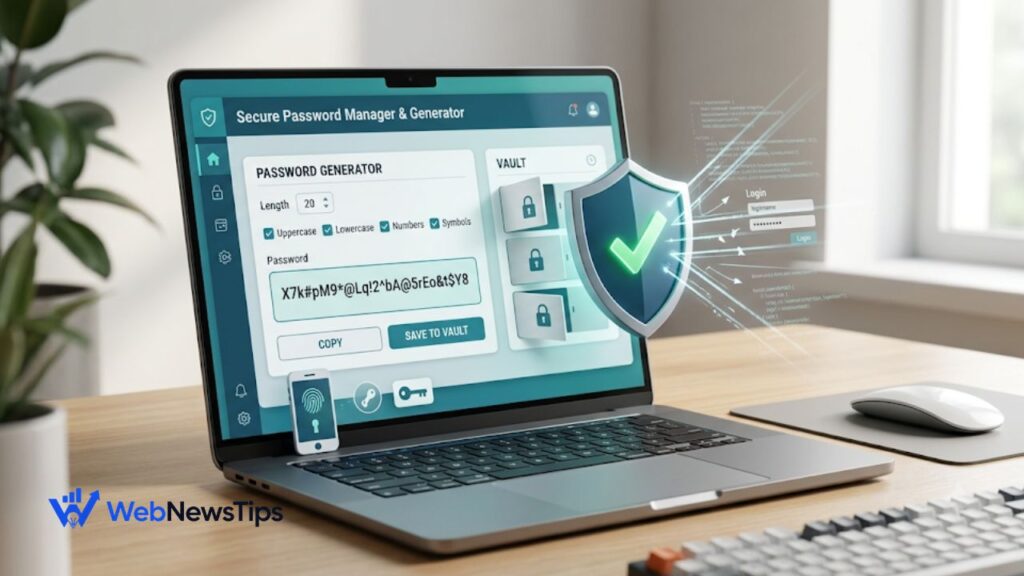
For accounts that accept generated credentials, the easiest option is to create a random password using the WebNewsTips Free Password Generator. You can choose a length and include uppercase letters, lowercase letters, numbers, and symbols. The goal is not to memorize the result; the goal is to make it unpredictable and save it safely.
For important accounts, choose a long password that meets the website’s requirements. Avoid manually editing the generated password into something more memorable, because people often replace randomness with patterns. If the website rejects certain symbols, generate another password or adjust only the allowed character settings.
WebNewsTips also keeps its other lightweight website utilities in the Free Tools section, which is useful if you manage blogs, websites, or online business tasks from one place.
Random Passwords vs. Passphrases
Random passwords and passphrases solve slightly different problems. A password manager can generate a long string that is hard to predict but almost impossible to remember. That is fine because the manager stores it. A passphrase combines several unrelated words into something longer that a human can remember more easily.
A memorable passphrase can be useful for the master password to your password manager or another credential you genuinely need to type from memory. Avoid famous quotes, song lines, personal facts, or common phrases. The words should not tell a story about you. The strongest setup is usually a memorable, long master passphrase protecting a vault that stores random unique passwords for individual accounts.
Never Reuse the Same Password
Password reuse creates a different type of risk called credential stuffing. If one website is breached and your password appears in a stolen database, attackers can automatically try the same email-and-password combination on other services. They do not need to crack anything if you already reused the credential.
This is why every important account should have its own password. Email deserves special attention because password-reset messages for many other services are sent there. Your banking, cloud storage, business tools, social accounts, domain registrar, hosting panel, and website administrator accounts should also be treated as high priority.
If you manage a website, review your admin credentials along with the broader security and maintenance advice in the WebNewsTips WordPress guides. A strong site password is important, but updates, plugins, user permissions, and login security matter too.
Store Passwords in a Trusted Password Manager
A password manager is designed to store many unique passwords in an encrypted vault, fill them into login forms, and often generate new credentials for you. This removes the impossible requirement of remembering a different random password for every account.
Choose a reputable manager that is actively maintained, works across your devices, and supports multifactor authentication. Protect the vault with a long master passphrase you do not reuse anywhere else. If the manager offers biometric unlock on a trusted device, that can make daily use easier without weakening the uniqueness of the stored account passwords.
Avoid saving an unencrypted password list in a notes app, spreadsheet, chat message, or email draft. Also avoid sending passwords to yourself through messaging apps. Convenience disappears quickly if one compromised device exposes every login at once.
Turn On MFA and Use Passkeys Where Available
A strong password cannot stop every attack. Multifactor authentication adds another check, such as an authenticator app, security key, or device-based approval. If an attacker steals your password, that second factor can still block the login.
For important accounts, prefer stronger MFA options when available. Security keys and phishing-resistant methods are stronger than simple text-message codes. Passkeys are another useful option because they replace the traditional shared password with cryptographic credentials tied to your device or account ecosystem, making common phishing attacks much harder.
Keep recovery codes in a secure location separate from your everyday device. Recovery information is part of your security system; if it is easy for someone else to access, it can become the shortcut around your strong password.
Do You Need to Change Passwords Every 30 or 90 Days?
Routine password rotation used to be common advice, but current NIST guidance says users should not be forced to change passwords periodically without a reason. Frequent changes often push people toward predictable patterns such as changing “Spring2026!” to “Summer2026!”
Change a password when there is evidence it may have been compromised, when a service reports a breach affecting credentials, when you accidentally shared it, or when you discover you reused it. If your password is long, unique, safely stored, and not exposed, changing it simply because a calendar reminder appeared may not improve security.
What to Do If a Password May Be Compromised
- Change the affected password immediately from a trusted device.
- If the password was reused anywhere else, replace those copies with different unique passwords.
- Turn on MFA or upgrade to a stronger MFA method if the service offers one.
- Review recent sign-ins, sessions, connected devices, forwarding rules, and recovery information.
- Sign out of unknown devices or revoke active sessions when the service provides that option.
- Watch the associated email account closely, because attackers may try password resets on other services.
Password Safety Best Practices Checklist
- Use at least 15 characters when a password is your main login factor.
- Use a different password for every important account.
- Prefer generated random passwords for accounts you do not need to memorize.
- Use a long, memorable passphrase for the password manager master password.
- Avoid names, birthdays, phone numbers, common words, keyboard patterns, and predictable substitutions.
- Store credentials in a trusted password manager rather than a plain document.
- Turn on MFA, especially for email, banking, business, cloud, and admin accounts.
- Use passkeys or phishing-resistant authentication where available.
- Change passwords after suspected compromise, not simply because a fixed number of days passed.
- Never share passwords through email, chat, or screenshots.
Password Mistakes That Look Secure but Are Not
- Adding one symbol to a weak word. “Password!” is still based on one of the first words attackers try.
- Using the same strong password everywhere. Strength does not stop credential stuffing after another service leaks the password.
- Saving passwords in a browser or note without protecting the device. Anyone who gains access to the unlocked device may gain access to the credentials.
- Relying on security questions. Answers based on public or personal information can often be guessed or researched.
- Ignoring the email account. A compromised inbox can be used to reset passwords for many other services.
Frequently Asked Questions
How long should a strong password be?
For a password used by itself as the main authentication factor, current NIST guidance uses a 15-character minimum. Longer unique passwords are generally better, especially when a password manager creates and stores them.
Are symbols required for a strong password?
Not necessarily. Length and unpredictability matter more than forcing a specific character recipe. Symbols can still add variety to generated passwords when the website accepts them.
Are password generators safe to use?
A password generator can be a very useful way to avoid predictable human-created passwords. Use a trusted generator, create a long result, and store the password in a secure password manager.
Should I write down my passwords?
A protected physical backup may be safer than an exposed digital note in some situations, but for most people a reputable password manager is easier and more scalable. Never leave a master password or full password list where others can access it.
What is more important: a strong password or MFA?
Use both when possible. A strong unique password reduces guessing and reuse risk, while MFA can help protect the account even if the password is stolen.
Final Thoughts
Strong password security is less about memorizing complicated strings and more about building a system you can actually maintain. Use long unique passwords, let a generator create randomness, store the results in a trusted password manager, and protect important accounts with MFA or passkeys.
The biggest improvement for most people is simply stopping password reuse. Once every important account has its own credential, one leaked password is far less likely to become a chain reaction across your email, social accounts, website, and business tools. Good security should reduce repetitive work while making the consequences of one mistake smaller.