A WordPress website can be a valuable business asset, a source of income, or the home of years of published work. That also makes it attractive to automated bots and attackers. The good news is that most website owners do not need to become cybersecurity experts. A practical WordPress security checklist can reduce common risks and make your site much harder to compromise.
Why WordPress Websites Get Hacked
Many attacks are not personal. Automated bots continuously scan the internet for outdated WordPress installations, weak passwords, vulnerable plugins, exposed login pages, and poor server settings. When a bot finds an easy opening, it may inject spam, redirect visitors, steal data, create hidden administrator accounts, or use the server to attack other websites.
WordPress itself is actively maintained, but your full website also includes hosting, themes, plugins, user accounts, email, and the devices used to manage it. Security is therefore a process, not a single plugin. If you are still learning the platform, start with this WordPress beginner guide and then apply the protection steps below.
WordPress Security Checklist: 12 Essential Steps
Work through these steps in order. Start with accounts, updates, and backups, then improve monitoring and recovery.
1. Update WordPress, Themes, and Plugins
Updates often include security fixes. Delaying them can leave a known vulnerability open after attackers already understand how to exploit it. Check Dashboard → Updates regularly and install current versions of WordPress core, your active theme, and every plugin you use.
Before a major update, create a backup and test important pages afterward. Confirm that menus, forms, login, search, checkout, and mobile layouts still work. Enable automatic updates for trusted, actively maintained plugins when appropriate, but do not use automation as a reason to stop checking the site.
2. Use Strong, Unique Passwords and Two-Factor Authentication
Never reuse the same password for WordPress, hosting, email, domain registration, or database access. If one service is breached, reused credentials can give an attacker access to your entire website. Use a long, random password and store it in a reputable password manager.
You can create a strong password with the WebNewsTips Password Generator. Do not send passwords through ordinary chat messages or store them in an unprotected document. Enable two-factor authentication (2FA) for administrators and editors so a stolen password alone is not enough to log in. Save recovery codes in a secure location.
3. Remove Unnecessary Administrator Access
Every administrator account is a high-value entry point. Give each user only the permissions required for their job. A writer may need an Author or Editor role, but usually does not need full administrator access. Delete old accounts belonging to former employees, developers, or agencies after confirming they are no longer needed.
Avoid sharing one administrator login among several people. Individual accounts create clearer accountability and allow you to remove one person’s access without changing everyone’s password. Review users at least once every few months and immediately after a team or supplier change.
4. Install One Reputable Security Plugin
A good security plugin can add a firewall, malware scanning, login protection, file-change alerts, and security monitoring. Popular options include Wordfence, Sucuri Security, and All-In-One Security. Choose one main security suite, configure it carefully, and avoid running several overlapping firewall or scanner plugins at the same time.
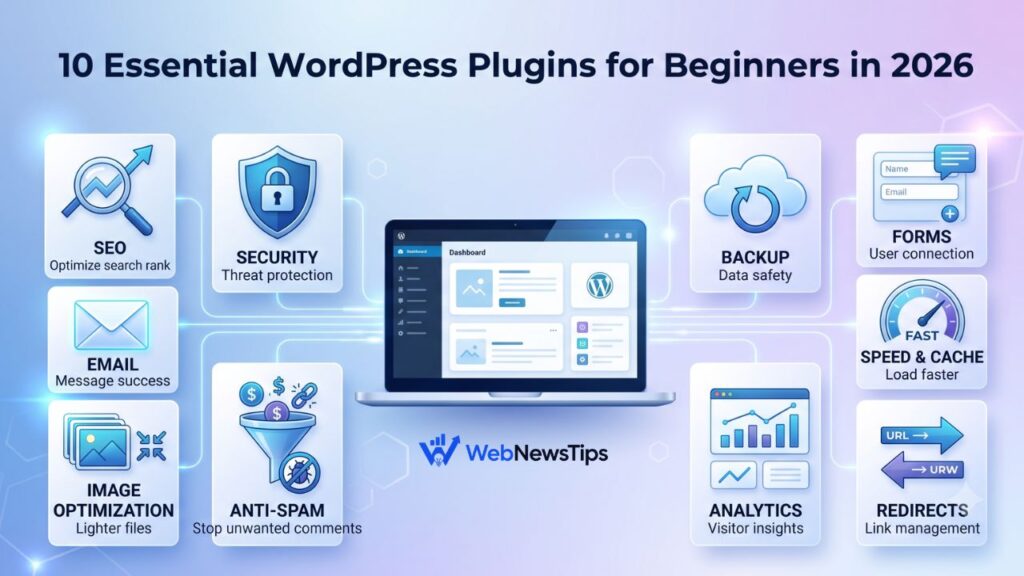
Read the alerts instead of ignoring them. Prioritize confirmed malware, unexpected file changes, vulnerable software, new administrator accounts, and repeated failed login attempts. For a wider plugin setup, review our essential WordPress plugins guide. Remember that a security plugin supports good maintenance; it cannot replace updates, backups, strong passwords, and secure hosting.
5. Create Automatic Off-Site Backups
Backups are your recovery plan. They help after hacking, server failure, accidental deletion, a broken update, or a damaging configuration change. A complete WordPress backup should include the database, uploads, themes, plugins, and important configuration files.
Schedule backups according to how often the website changes. A busy ecommerce site may need daily or real-time backups, while a small brochure site may need fewer. Keep at least one copy outside the same hosting account—for example, in secure cloud storage or a managed backup service. Most importantly, test restoration. A backup you cannot restore is only a hope, not a recovery plan.
6. Choose Secure Hosting and Use HTTPS
Your hosting company controls the server environment beneath WordPress. Look for supported PHP versions, malware monitoring, account isolation, automatic backups, a web application firewall, and responsive technical support. Cheap hosting that is poorly maintained can weaken every other security measure.
Use HTTPS across the entire website so data travelling between the visitor and your server is encrypted. Install a valid SSL certificate, force HTTPS, and fix mixed-content warnings. Also protect your hosting control panel and domain registrar with unique passwords and 2FA because an attacker who controls either account may bypass WordPress completely.
7. Delete Unused Themes and Plugins
Inactive software can still contain vulnerable files. Remove plugins and themes you no longer use instead of leaving them disabled. Keep one reliable default WordPress theme only if it is needed for troubleshooting. Never install “nulled” premium themes or plugins from unofficial websites; modified packages may contain hidden malicious code and do not receive trustworthy updates.
A smaller, well-maintained website is easier to secure and often easier to optimize. After cleanup, follow the WordPress speed optimization guide to improve performance without adding conflicting tools.
8. Protect the Login Page
Use login rate limiting or brute-force protection to slow automated password guessing. Many security plugins can temporarily block repeated failed attempts, add CAPTCHA when risk is high, and notify you about suspicious logins. Two-factor authentication remains more important than merely changing the login URL.
Do not rely on hiding /wp-admin or changing the login address as your only defence. It may reduce noise, but attackers can still discover common endpoints. Strong credentials, 2FA, rate limiting, and monitoring provide stronger protection. If your site does not need public user registration, disable it under Settings → General.
9. Secure Your Computer, Email, and Browser
A perfectly configured website can still be compromised through an infected laptop or a stolen email account. Keep your operating system, browser, password manager, and security software updated. Avoid logging in from public computers, and use a trusted network or VPN when managing the site on unfamiliar Wi-Fi.
Your email account is especially important because it may receive password-reset links and hosting notifications. Protect it with a unique password and 2FA. Be cautious with messages claiming that your domain, hosting, plugin license, or SSL certificate is expiring. Open the provider’s website directly rather than clicking a suspicious email link.
10. Use Safe File Permissions and Disable Dashboard File Editing
File permissions control who can read or change files on the server. Incorrect permissions may allow unauthorized modification. Most beginners should use the secure defaults recommended by their hosting provider instead of applying random permission values from old tutorials.
For additional protection, ask your host or developer to disable the built-in theme and plugin file editors in the WordPress dashboard. This does not prevent every attack, but it can make it harder for a compromised administrator account to insert code through the dashboard. Advanced users can review the official WordPress hardening guidance before changing server files or configuration.
11. Monitor Changes and Scan Regularly
Security improves when you notice unusual activity early. Review scan results, administrator accounts, recently installed plugins, file-change alerts, and login history. Check Google Search Console for unexpected indexed pages, spam keywords, or security warnings. Also watch for sudden traffic drops, strange redirects, new pop-ups, or unfamiliar files in your hosting account.
Set alerts to an email address you actively monitor, but avoid alert fatigue. Too many low-value notifications can cause you to miss a serious one. Create a simple monthly maintenance routine that includes updates, backups, a malware scan, user review, and a quick check of critical pages.
12. Prepare a Response Plan Before an Emergency
If your website is hacked, act calmly. Put the site in maintenance mode if visitors are at risk, contact the host, preserve logs when possible, reset important credentials from a clean device, and restore from a verified clean backup. Scan the restored site and update all software before reopening it.
Do not simply delete the visible spam page and assume the problem is solved. Attackers may leave hidden administrator accounts, scheduled tasks, modified files, or database entries that recreate the infection. For business-critical websites, use a professional incident-response or malware-removal service. Document what happened and close the original entry point so the attack does not return.
Common WordPress Security Mistakes to Avoid
Website owners often install a security plugin and believe the job is finished. Other common mistakes include using “admin” as a shared username, reusing passwords, ignoring update notices, keeping old plugins, storing backups on the same server, giving every user administrator access, and buying themes from unofficial sources.
Another mistake is making technical changes without a backup. Editing .htaccess, wp-config.php, database settings, or server rules can improve security when done correctly, but copying unfamiliar code may break the site or lock out legitimate users. Beginners should use managed hosting tools or ask a qualified professional for help with advanced hardening.
Quick WordPress Security Checklist
| ☐ Update WordPress core, themes, and plugins. ☐ Use unique passwords and enable 2FA. ☐ Remove old users and unnecessary administrator access. ☐ Configure one reputable security plugin. ☐ Schedule automatic off-site backups and test restoration. ☐ Use secure hosting, HTTPS, and 2FA on hosting/domain accounts. | ☐ Delete unused and unofficial themes or plugins. ☐ Enable login rate limiting and disable unused registration. ☐ Secure the computer and email account used to manage WordPress. ☐ Review alerts, scans, user accounts, and critical pages monthly. ☐ Keep a written recovery plan and trusted support contact. |
Frequently Asked Questions
How often should I update WordPress?
Install security and maintenance updates as soon as practical after taking a backup. Check the dashboard at least weekly, and review the website after each important update.
Is WordPress secure without a security plugin?
WordPress core includes security features, but a reputable plugin can add useful layers such as firewall rules, malware scanning, login limits, and alerts. The plugin should support—not replace—updates, strong passwords, backups, and secure hosting.
Can changing the WordPress login URL stop hackers?
It may reduce automated noise, but it does not replace strong authentication. Use unique passwords, 2FA, login rate limiting, and monitoring as your main login protections.
What should I do first if my WordPress site is hacked?
Contact your host, protect visitors, reset important credentials from a clean device, identify the entry point, and restore from a verified clean backup when appropriate. Business or ecommerce sites should consider professional malware removal.
Final Thoughts
No website can be guaranteed 100% secure, but consistent maintenance dramatically reduces avoidable risk. Start with the highest-impact actions: update everything, use unique passwords and 2FA, remove unnecessary administrators, install one reputable security plugin, and keep tested off-site backups.
Use this WordPress security checklist as a monthly routine rather than a one-time project. Small, regular checks are easier than recovering from a major incident. For more beginner-friendly help, explore the WordPress guides and tutorials on WebNewsTips.