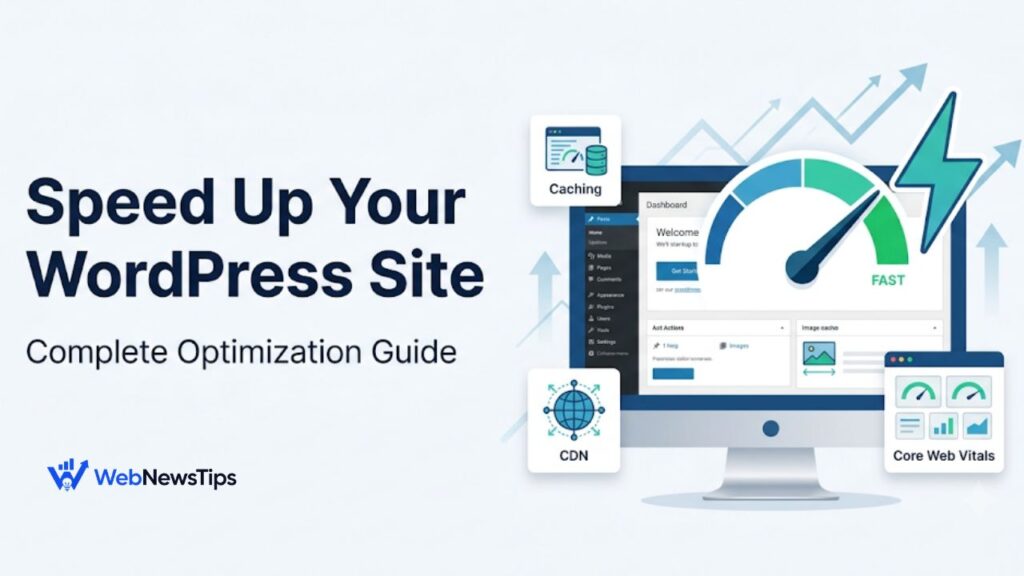
A slow website can frustrate visitors before they read your content. Pages may feel unreliable, buttons can respond late, and shifting layouts can cause wrong clicks. The good news is that WordPress speed optimization does not require one magical plugin or a complete rebuild. It works best as a process: measure, fix the largest bottlenecks, test again, and keep the site lightweight.
This guide covers caching, Core Web Vitals, images, scripts, and the settings most likely to affect performance. For broader setup help, explore the WordPress guides and tutorials on WebNewsTips.
Why WordPress Site Speed Matters
Website speed affects more than a score. A faster site helps readers browse, complete forms, and view products with less friction. It can also reduce server processing and improve stability during traffic spikes.
Speed is also part of technical SEO. Google uses Core Web Vitals to assess real-world loading, responsiveness, and visual stability. They do not guarantee rankings, but poor performance can weaken page experience. Review speed with crawling, indexing, mobile usability, and structure by following this technical SEO audit guide.
Understand the Three Core Web Vitals
Core Web Vitals cover three parts of user experience. Aim for good results for most real users, not only a fast test on your own computer.
Largest Contentful Paint (LCP): Measures how quickly the main visible content loads. A good target is 2.5 seconds or less. Large hero images, slow hosting, blocking CSS, and delayed fonts are common causes.
Interaction to Next Paint (INP): Measures response after a click, tap, or keystroke. A good target is under 200 milliseconds. Heavy JavaScript and third-party scripts can slow interactions.
Cumulative Layout Shift (CLS): Measures unexpected movement while loading. A good score is below 0.1. Images without dimensions, ads, banners, and fonts can shift content.
| Important: Use PageSpeed Insights for a useful starting point, but do not chase a perfect score at the expense of design or functionality. Compare mobile and desktop results, review both field and lab data, and focus on the issues affecting real visitors. |
Before You Optimize: Back Up and Measure
Performance settings change how files and cached pages are delivered. Create a full backup first and use staging when available. This is especially important for ecommerce, membership, booking, and multilingual sites with dynamic content.
Create a simple baseline before installing or changing anything:
- Test the homepage, one typical blog post, and any important landing or product page.
- Record mobile LCP, INP or Total Blocking Time in lab tests, CLS, and server response time.
- Note the largest images, unused scripts, and slow third-party resources shown in the report.
- Repeat the same tests after every major change so you know what actually helped.
1. Start with Reliable Hosting and a Healthy Server
A caching plugin cannot fully repair an overloaded server. If Time to First Byte stays slow after caching, hosting may be the bottleneck. Look for current PHP support, server caching, HTTPS, backups, and enough resources for your traffic.
Ask whether Redis or Memcached, a CDN, or full-page caching is already active. Avoid overlapping systems that optimize the same files. New users can first review the WordPress for beginners guide to make sure the basic setup is clean.
2. Configure One Caching Plugin Carefully
WordPress normally runs PHP and database queries for each visit. Page caching saves ready-made HTML and serves it without repeating the full process, reducing server work.
Common options include LiteSpeed Cache on LiteSpeed-powered hosting, WP Super Cache, W3 Total Cache, WP Fastest Cache, and premium tools such as WP Rocket. Choose for your server and comfort level, and use one primary page-caching plugin unless your host recommends otherwise.
Safe caching setup for beginners
- Enable page caching and browser caching first.
- Turn on GZIP or Brotli compression if your host is not already handling it.
- Enable cache preloading only after confirming that it does not overload a small hosting plan.
- Exclude cart, checkout, account, login, preview, and other personalized pages from full-page caching.
- Clear the cache after theme changes, plugin updates, CSS edits, or major content changes.
Do not activate every switch at once. Enable one group, clear caches, test in a private window, and check forms, menus, search, and checkout before continuing.
3. Optimize Images Without Making Them Look Bad
Images are often the largest page resources. Uploading a 4000-pixel photo for an 800-pixel space wastes bandwidth. Resize, compress, and use WebP or AVIF when supported.
Lazy-load below-the-fold images, but not the main hero or featured image when it is the LCP element. Add width and height dimensions to reduce layout shifts. For search visibility and performance, follow these image SEO best practices.
- Use descriptive filenames and useful alt text where the image adds meaning.
- Avoid placing large background videos or animated sliders above the fold.
- Serve properly sized thumbnails instead of loading the original file everywhere.
- Compress existing media in batches, but keep a backup before bulk processing.
4. Reduce CSS and JavaScript Work
Too much CSS or JavaScript can delay rendering and interactions. Minification reduces file size, defer or delay settings move non-critical scripts later, and removing unused CSS can help page-builder sites.
These settings can break layouts or features, so test them separately. If a menu, form, popup, analytics script, or payment feature fails, exclude the affected file instead of disabling every optimization.
| Practical rule: A smaller number of well-tested optimizations is better than an aggressive setup that breaks the user experience. |
5. Use a Lightweight Theme and Fewer Plugins
Plugin count alone does not determine speed; one heavy plugin can outweigh several focused tools. Review front-end assets, remove unused or overlapping plugins, and delete inactive items after confirming they are not needed.
A lightweight theme is easier to optimize than one built around many animations, fonts, icons, and sliders. With page builders, reduce nested sections, motion effects, and one-off styles.
6. Clean the Database—But Do It Conservatively
Databases collect revisions, expired transients, spam, and old plugin data. Cleanup may help administration, but it is rarely the biggest front-end fix. Back up first and remove only items you understand.
Persistent object caching can reduce repeated database work on busy sites, but it requires server support. Ask the host before installing an object-cache plugin.
7. Add a CDN for Faster Global Delivery
A CDN stores static resources in multiple locations so visitors can receive images, CSS, JavaScript, and sometimes HTML from a nearer server. It is useful for global audiences and media-heavy pages.
Configure it through your host, cache plugin, or CDN provider. Confirm HTTPS works and avoid conflicting duplicate caches. Test logged-out pages from more than one region when possible.
8. Control Fonts, Ads, Analytics, and Embeds
Third-party resources are hidden speed problems because you cannot control their servers. Ads, chat widgets, social feeds, tracking tags, maps, and videos add requests and JavaScript work.
- Use fewer font families and weights, and preload only the font files needed above the fold.
- Replace automatic video embeds with a lightweight preview image that loads the player after a click.
- Remove duplicate analytics or tag-manager scripts.
- Delay non-essential chat, heatmap, and marketing tools until after the page becomes usable.
- Reserve space for ads, banners, and embeds to prevent CLS.
9. Treat Dynamic and WooCommerce Pages Differently
Public posts and pages are usually easy to cache. Carts, checkout, accounts, search results, memberships, and personalized pages need careful exclusions.
For WooCommerce, test add-to-cart actions, coupons, shipping, payments, and confirmations after changes. A faster store that loses carts is not an improvement.
A Simple WordPress Speed Optimization Workflow
- Measure: Test key page types on mobile and desktop.
- Fix the foundation: Review hosting, PHP, server caching, and major errors.
- Enable page caching: Use one compatible caching plugin with safe defaults.
- Optimize images: Resize, compress, convert formats, and protect the LCP image.
- Reduce front-end work: Remove unused plugins and carefully optimize CSS and JavaScript.
- Add delivery improvements: Configure browser caching and a CDN where useful.
- Retest real functionality: Check menus, forms, search, login, and ecommerce actions.
- Monitor over time: Review Core Web Vitals after theme, plugin, ad, or layout changes.
Common Speed Optimization Mistakes
Installing multiple caching plugins: Overlapping page cache, minification, and CDN rules can create stale pages or broken assets.
Optimizing only the homepage: A fast homepage does not guarantee that posts, category pages, landing pages, or product templates are fast.
Chasing a score instead of usability: A score is a diagnostic signal. The real goal is a fast, stable, functional experience.
Lazy-loading the main image: The primary above-the-fold image often needs to load early to protect LCP.
Ignoring mobile visitors: Mobile tests often reveal slower devices, weaker networks, and interaction delays that desktop tests hide.
Skipping backups and testing: Aggressive database cleanup or file optimization can be difficult to reverse without a safe copy.
Quick WordPress Speed Checklist
- ☐ Back up the website and test on staging when possible.
- ☐ Measure several page types with PageSpeed Insights.
- ☐ Use reliable hosting and a supported PHP version.
- ☐ Enable one page-caching solution and browser caching.
- ☐ Compress and resize images; use WebP or AVIF where appropriate.
- ☐ Do not lazy-load the LCP image.
- ☐ Remove unused plugins, themes, scripts, and design effects.
- ☐ Minify or delay CSS and JavaScript only after testing.
- ☐ Use a CDN for a geographically distributed audience.
- ☐ Reserve dimensions for images, ads, and embeds to reduce CLS.
- ☐ Retest forms, menus, logins, and checkout after every major change.
Frequently Asked Questions
What is the best caching plugin for WordPress?
There is no single best plugin. LiteSpeed Cache suits LiteSpeed hosting, while WP Super Cache and other established tools work in different environments. Follow hosting guidance and avoid multiple page caches.
Will a caching plugin fix every slow WordPress site?
No. Caching reduces repeated server work, but hosting, images, themes, JavaScript, database issues, and third-party scripts may still need separate fixes.
How often should I test site speed?
Test after major theme, plugin, layout, advertising, or hosting changes. A monthly check of key templates is a practical starting point.
Is a 100 PageSpeed score necessary?
No. Prioritize good Core Web Vitals, stable functionality, readable design, and a fast experience for real visitors.
Can speed optimization break a website?
Yes. Combining files, delaying scripts, cleaning databases, or caching dynamic pages can cause problems. Back up first and enable advanced settings one at a time.
Final Thoughts
WordPress speed optimization is a cycle, not a one-time switch. Test accurately, improve hosting and caching, optimize large images and scripts, and remove low-value features. Then test the real site—not only the score—to confirm visitors can read, click, submit forms, and purchase without problems.
As the site grows, keep it organized with a clear internal linking strategy and review speed whenever plugins, ads, or design elements change. Small, verified improvements are safer than enabling every setting at once.