Starting a WordPress website is exciting, but the plugin screen can quickly become confusing. Thousands of tools promise better rankings, stronger security, faster pages, easier forms, and automatic backups. A beginner may install too many plugins or activate overlapping features without understanding what they change.
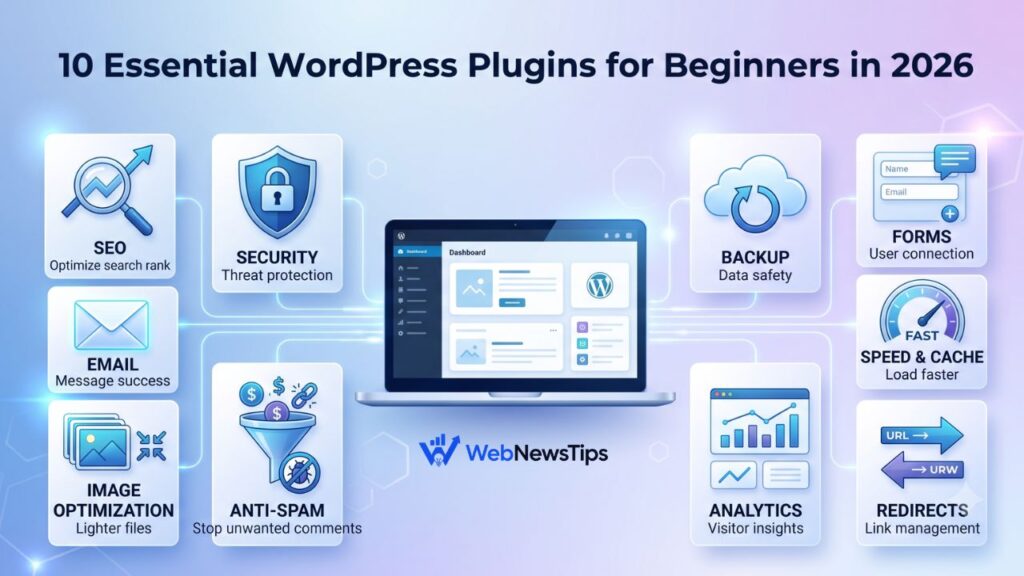
The best approach in 2026 is to build a small, reliable toolkit that covers the jobs WordPress does not fully handle on its own. The essential WordPress plugins below focus on SEO, security, backups, performance, forms, email delivery, analytics, image optimization, spam control, and redirects.
Before installing anything, complete the basic setup in the WordPress for beginners guide. Then choose only the plugins that match your website, hosting environment, and current needs.
What Makes a WordPress Plugin Essential?
An essential plugin solves a real problem, stays actively maintained, works with current WordPress versions, and does not duplicate another tool on your site. It should also be understandable enough to configure safely.
Check recent updates, compatibility information, support activity, user reviews, and documentation. Avoid abandoned plugins, unofficial copies, and downloads from unknown websites. Free plugins from the official WordPress directory are usually the best starting point.
Remember that “essential” does not mean every site needs all ten plugins. A portfolio, blog, local business website, and online store have different requirements. Install one plugin for each necessary job, test the website after activation, and remove tools that do not provide ongoing value.
1. Rank Math SEO: Search Optimization Made Easier
Rank Math SEO helps beginners manage on-page and technical SEO from the WordPress dashboard. Its setup wizard guides users through site information, search appearance, XML sitemaps, and other basic settings. When editing content, it offers suggestions for SEO titles, meta descriptions, focus keywords, links, and structure.
It can also add schema markup and generate XML sitemaps so search engines can better understand and discover your content. However, its content score should be treated as guidance, not a guarantee of rankings. Search intent, useful information, clear writing, and internal links still matter more than a perfect plugin score.
Activate only the modules you need. Review the WebNewsTips SEO learning hub for practical guidance, and use the SEO Title Checker before publishing important pages.
Best for: Blogs, service websites, local businesses, and content-focused sites.
2. Wordfence Security: Firewall and Malware Scanning
Wordfence adds an endpoint firewall, malware scanning, login protection, two-factor authentication, and tools for reviewing suspicious activity. These features help protect against automated login attacks, compromised files, and known security threats.
After installation, complete the setup, enable two-factor authentication for administrator accounts, schedule scans, and review important alerts. Do not panic over every technical message. Focus on confirmed file changes, vulnerable software, repeated failed logins, and high-risk warnings.
A security plugin is only one layer of protection. Keep WordPress, themes, and plugins updated, remove unused accounts, and use strong unique passwords. The WebNewsTips Password Generator can help create a secure password, but it should be stored in a trusted password manager.
Best for: Most self-hosted WordPress sites, especially those with forms, user accounts, or several administrators.
3. UpdraftPlus: Scheduled Backups and Restoration
A backup protects you when an update fails, a site is hacked, files are deleted, or a design change breaks the layout. UpdraftPlus can back up WordPress files and the database, store copies remotely, and restore the site from the dashboard.
Do not rely only on backups saved on the same hosting account. If the server fails or the account is compromised, those files may become unavailable. Connect remote storage and choose a schedule based on how often the website changes. A busy store may need daily backups, while a small brochure site may need fewer.
Check that the first backup includes the database, plugins, themes, uploads, and other important files. Learn where the restore controls are before an emergency occurs.
Best for: Any WordPress website without a dependable managed backup service from its host.
4. WPForms Lite: Beginner-Friendly Contact Forms
WPForms Lite uses a drag-and-drop builder, allowing beginners to create a contact form without coding. It can be used for general enquiries, feedback, quote requests, newsletter signups, and other basic forms.
Start with only the fields you truly need. A general contact form may require a name, email address, subject, and message. Too many fields can reduce submissions and collect unnecessary personal information. Add a clear confirmation message so visitors know their form was received.
After publishing, test the form from a private browser window. Confirm notifications reach the correct inbox and enable available anti-spam controls. A form plugin builds the form, but an SMTP plugin may still be needed for reliable email delivery.
Best for: Blogs, portfolios, local services, and small business websites.
5. WP Mail SMTP: Better Email Deliverability
WordPress sends password resets, form notifications, order messages, and account alerts. On some hosting setups, these emails fail or land in spam because the default sending method is not properly authenticated.
WP Mail SMTP connects WordPress to a proper mail provider or SMTP service. Its setup wizard helps choose a mailer, authorize the connection, set the sender address, and send a test email.
Use a domain-based email address when possible and follow the provider’s setup instructions carefully. After configuration, test contact form notifications, password resets, and other important messages. WP Mail SMTP does not replace an email marketing platform; it mainly improves the delivery of website-generated emails.
Best for: Websites using contact forms, WooCommerce, memberships, bookings, or user accounts.
6. LiteSpeed Cache: Caching and Performance
Caching reduces repeated server work by serving ready-made page content to visitors. LiteSpeed Cache is especially useful on hosting that runs LiteSpeed Web Server because it can use server-level caching. It also includes tools for CSS, JavaScript, images, databases, and content delivery.
Confirm that your hosting supports LiteSpeed before using its full caching features. Enable basic page caching first, clear the cache, and test the site before activating advanced optimization.
Never run multiple full-page caching plugins together. Overlapping cache and minification settings can cause broken layouts or stale pages. Online stores should carefully exclude cart, checkout, account, and personalized pages when required.
Follow the complete WordPress speed optimization guide before changing advanced performance settings.
Best for: WordPress sites hosted on LiteSpeed-powered servers.
7. Smush: Image Compression and Optimization
Large images can slow mobile visitors and increase page size. Smush helps compress images, optimize existing media, enable lazy loading, and support modern image formats such as WebP or AVIF, depending on the setup.
The plugin is useful, but it cannot fix every image mistake. Resize images to sensible dimensions before uploading and avoid using huge camera-original files for ordinary blog images. Keep important originals outside WordPress before running bulk optimization.
After enabling compression, compare page speed and visual quality. Aggressive settings may not suit photography, design portfolios, or product images where fine detail matters.
Best for: Blogs, business sites, portfolios, and stores that publish images regularly.
8. Akismet Anti-Spam: Cleaner Comments and Forms
Spam comments and automated form submissions can waste time, fill the database, and introduce suspicious links. Akismet checks comments and supported form submissions against a spam database, then moves likely spam to a review area.
Activate the plugin, connect the required account or key, and check the spam queue occasionally. No filter is perfect, so review it before permanently deleting large batches.
If comments are disabled and the form plugin already provides effective spam protection, Akismet may be optional. Avoid installing several anti-spam tools that perform the same job.
Best for: Blogs with comments, stores with reviews, and sites receiving frequent automated spam.
9. Site Kit by Google: Search and Traffic Insights
Site Kit is Google’s official WordPress plugin for connecting services such as Search Console, Analytics, PageSpeed Insights, and AdSense. It displays useful reports inside the dashboard, helping beginners see how visitors find and use the site.
Use dashboard summaries to spot trends, then open the full Google tools when deeper reporting is needed. Search Console is useful for queries, clicks, impressions, indexing, and search performance. Analytics focuses more on visitor behavior and traffic sources.
Review privacy and cookie requirements before enabling Analytics. Also avoid adding the same tracking code through a theme, another plugin, and Site Kit at the same time.
Best for: Beginners who want a straightforward connection to important Google services.
10. Redirection: 301 Redirects and 404 Monitoring
URLs can change when a post is renamed, a page slug is updated, categories are reorganized, or old content is removed. Redirection helps create 301 redirects and monitor missing URLs that return 404 errors.
Use a 301 redirect when a page has permanently moved to a closely related new address. Do not send every deleted page to the homepage. The destination should match what the visitor expected to find.
Avoid long redirect chains, and test every rule in a private browser window. If your SEO plugin already manages redirects, use one system instead of maintaining duplicate rules.
Best for: Growing sites that update URLs, remove content, or migrate pages.
A Practical Plugin Setup for a New Website
A sensible beginner setup may include Rank Math SEO, Wordfence, UpdraftPlus, WPForms Lite, WP Mail SMTP, one caching plugin suited to the host, and Site Kit. Add Smush when images are important, Akismet when spam becomes a problem, and Redirection when URLs begin changing.
Install plugins one at a time. Configure each one, clear caches if necessary, and test the homepage, posts, menus, forms, login screen, and any checkout or account pages. This makes it easier to identify the cause if something breaks.
You can also use the Meta Description Generator and Slug Generator when preparing new content. Plugins help with implementation, but strong titles, useful content, clean URLs, and thoughtful internal links still require good editorial decisions.
Common Plugin Mistakes to Avoid
The most common mistake is installing several plugins for the same task. Two SEO plugins, multiple security suites, or more than one page cache can create conflicts and make troubleshooting difficult.
Avoid leaving unused plugins installed, ignoring updates, enabling advanced settings without testing, and downloading nulled premium plugins from unofficial websites. Nulled software may contain malicious code and does not receive reliable updates or support.
Before removing a plugin, check whether it stores important data or controls a visible feature. Create a backup, delete the plugin, and test the site. A smaller, well-maintained plugin collection is safer than a crowded one.
Frequently Asked Questions
How many WordPress plugins should a beginner install?
There is no perfect number. Install only the plugins required for current features. Quality, compatibility, and purpose matter more than the total count.
Are free WordPress plugins safe?
Many plugins in the official directory are safe and well maintained. Still, review update history, compatibility, support, and reputation. Avoid unknown download sites.
Can too many plugins slow down WordPress?
Yes, but plugin quality matters more than count alone. One poorly built plugin can create more load than several lightweight tools. Test performance and remove overlapping plugins.
Do I need both security and backups?
Yes. Security reduces risk and detects suspicious activity, while backups help restore the site after mistakes, failed updates, attacks, or server problems.
Should I install every plugin in this list?
No. Treat this as a toolkit. Choose plugins based on your site, hosting, and existing services. Managed hosting may already provide backups, caching, or security.
Final Thoughts
The essential WordPress plugins for beginners in 2026 should make a website safer, faster, easier to find, and easier to manage without adding unnecessary complexity. Start with SEO, security, backups, forms, email delivery, and performance. Add analytics, image optimization, spam protection, and redirects when those needs become relevant.
Regular maintenance matters just as much as installation. Update plugins, review alerts, test backups, remove unused tools, and check the site after major changes. Explore more WordPress guides and tutorials on WebNewsTips as your website grows, and keep your plugin stack focused on real problems rather than attractive feature lists.