WordPress is one of the easiest ways to build a website, blog, portfolio, online business site, or content hub without starting from code. For beginners, the hard part is usually not installing WordPress. The hard part is knowing what to do next: which pages to create, which plugins to install, how to organize content, and how to keep the site clean, fast, and useful.
This guide is written for beginners, bloggers, freelancers, and small business owners who want a practical WordPress setup in 2026. If you are building a site like WebNewsTips, your goal should be simple: create helpful pages, publish useful content, use the right tools, and make your website easy for visitors and search engines to understand.
For official WordPress learning and publishing help, you can also explore the WordPress.org Support Guides, which cover dashboard screens, media, publishing, pages, menus, and other WordPress basics.
Why WordPress is still useful for beginners
WordPress gives you control over pages, posts, menus, themes, plugins, categories, and content structure. That is why it works well for blogs, service websites, affiliate websites, free tool websites, review sites, and small business websites.
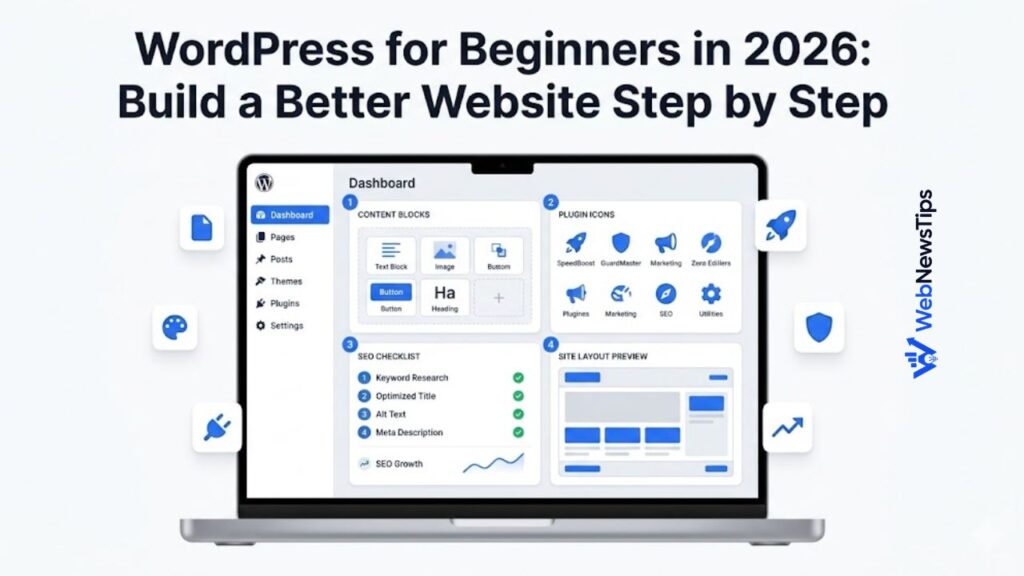
A beginner does not need to learn everything at once. A better approach is to build the foundation first, then improve the website step by step. Start with the main pages, set up clean navigation, publish your first helpful articles, and then improve SEO, speed, design, and internal links over time.
Step 1: Choose a clear website purpose
Before changing themes or installing plugins, decide what your website is for. A WordPress website becomes easier to build when the purpose is clear. For example, a blog may focus on educational posts, while a small business site may focus on services, contact pages, and trust signals.
For a website like WebNewsTips, the purpose is to help users discover AI tools, use free web tools, and learn SEO, WordPress, blogging, and online growth tips. This kind of purpose makes it easier to plan categories, pages, and internal links.
- Write down your main audience.
- List the main problems your website will solve.
- Create categories that match your content plan.
- Connect important pages from the homepage, footer, and related articles.
Step 2: Set up important WordPress pages
A new WordPress website should not only have blog posts. It should also have basic pages that explain the site, build trust, and help users move around.
- About page to explain the website and audience.
- Contact page so visitors can send questions or feedback.
- Privacy Policy, Terms, Affiliate Disclosure, and Disclaimer for basic legal and trust pages.
- Free Tools page if your website offers utilities or resources.
- WordPress Guides, SEO Guides, and Blogging Tips pages for content hubs.
Step 3: Pick a clean theme and keep the design simple
A clean theme is better than a heavy design with too many animations and large sections. Beginners often make the mistake of focusing only on appearance, but a good website also needs speed, readability, mobile layout, and simple navigation.
Use a lightweight theme, keep colors consistent, and make sure buttons, headings, and cards match across the site. A simple SaaS-style layout works well for tool websites, AI resource websites, and WordPress guide sites because it feels clean, modern, and easy to scan.
Step 4: Install only useful plugins
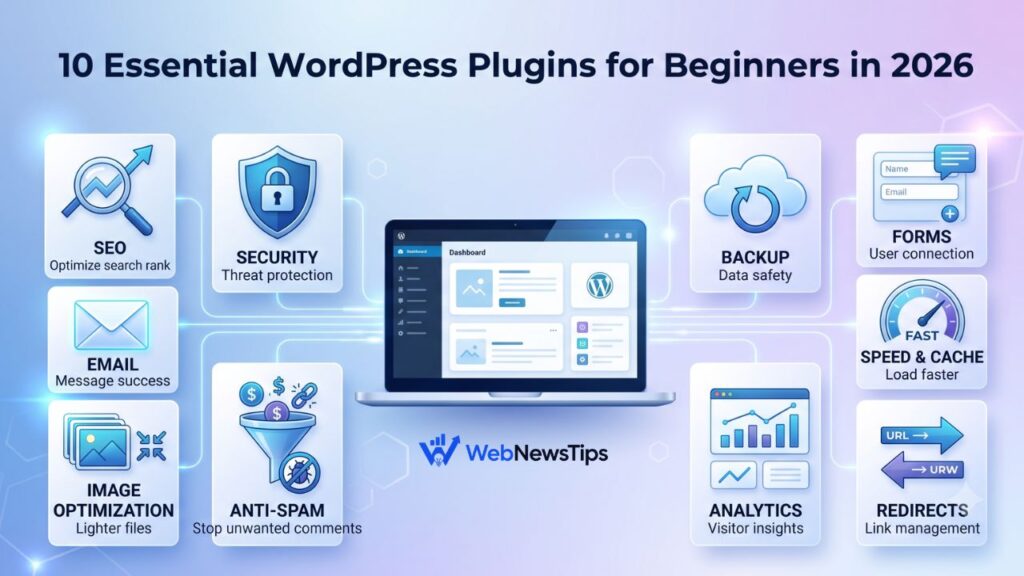
Plugins can add important features, but too many plugins can slow down the site or make it harder to manage. Start with only what you need for SEO, caching, security, forms, and content management.
- SEO plugin for titles, meta descriptions, schema, and sitemap settings.
- Caching or performance plugin to improve speed.
- Contact form or custom form setup for user messages.
- Security and upload restriction tools when needed.
- Code snippet plugin if you are adding custom shortcodes or sections.
After installing plugins, check whether you really use each one. If a plugin is not needed, remove it. A cleaner setup is easier to maintain.
Step 5: Make WordPress SEO-friendly from the start
WordPress gives you the structure, but you still need to optimize your pages and posts. SEO starts with clear titles, useful content, clean URLs, internal links, and helpful categories.
You can use WebNewsTips tools like the SEO Title Checker, Meta Description Generator, and Slug Generator to prepare basic SEO details before publishing.
- Use short and readable URLs.
- Write one clear H1 title for each page or post.
- Use H2 and H3 headings to organize sections.
- Add internal links to related guides, tools, and categories.
- Write meta descriptions that explain the page clearly.
Step 6: Plan content before publishing
Publishing random posts without a plan makes a site messy. Instead, use your categories as a roadmap. For a WordPress website, you can create content around setup, plugins, themes, SEO, speed, security, blogging, and website growth.
Before writing a post, create a title, outline, and meta description. You can use the AI Title Generator, Blog Outline Generator, and Word Counter to speed up your content workflow.
Beginner-friendly WordPress article ideas
- Best WordPress settings for a new website
- How to choose a WordPress theme for a small business
- Essential WordPress plugins for beginners
- How to improve WordPress website speed
- How to create SEO-friendly WordPress blog posts
- Common WordPress mistakes beginners should avoid
Step 7: Use internal links to build a stronger website
Internal links help users find related pages and help search engines understand your website structure. For example, a WordPress guide can naturally link to SEO guides, free tools, blogging tips, and relevant tool pages.
A good internal linking flow for this article is: WordPress guide to Free Tools, WordPress guide to SEO Guides, WordPress guide to Blogging Tips, and WordPress guide to AI Tools. This keeps users moving through your site instead of leaving after one page.
Step 8: Keep security and backups in mind
A WordPress website should be easy to use, but it should also be protected. Use strong passwords, update plugins and themes, avoid unknown plugins, and keep backups available. If you manage multiple accounts, use a trusted password manager and create unique passwords.
For quick password ideas, you can use the Password Generator, then store the password safely in your own password manager.
- Update WordPress, themes, and plugins regularly.
- Use strong and unique admin passwords.
- Remove unused themes and plugins.
- Use secure hosting and backup options.
- Avoid sharing admin access unless necessary.
Step 9: Improve speed and user experience
Speed matters because visitors do not like slow websites. WordPress speed depends on hosting, theme, plugins, image sizes, caching, scripts, and page design. Keep your pages lightweight, compress images, avoid unnecessary plugins, and test your pages after major changes.
Also make sure your site works well on mobile. Many users will visit from phones, so buttons should be easy to tap, text should be readable, and sections should not look broken on smaller screens.
Common WordPress mistakes beginners should avoid
- Installing too many plugins without checking performance.
- Using unclear page titles and messy URLs.
- Ignoring mobile design and page speed.
- Publishing content without internal links.
- Not creating important pages like About, Contact, Privacy Policy, and Disclaimer.
- Changing themes too often instead of improving content and structure.
Final thoughts
WordPress is beginner-friendly, but a successful website still needs planning. Start with a clear purpose, create important pages, choose a clean theme, use only useful plugins, and publish content that helps your audience.If you want to improve your WordPress workflow, explore the WordPress Guides section, try the Free Tools, and use the SEO Guides section to make your pages easier to understand and optimize.