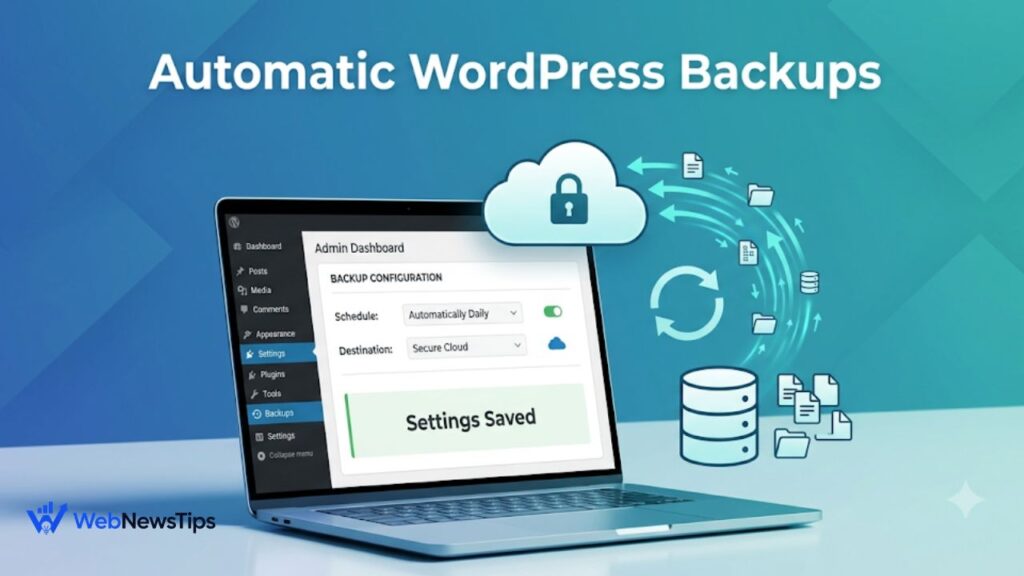
A WordPress backup is easy to ignore while your website works normally. Its value becomes clear after a failed update, deleted page, hacked account, server problem, or broken design. A reliable copy lets you recover without rebuilding everything.
You do not need an expensive service to get started. Established WordPress plugins can schedule database and file backups, then send them to remote storage such as Google Drive, Dropbox, Amazon S3, or FTP. This guide explains the free setup, suitable schedules, plugin choices, and restore testing.
| Important: A backup is useful only when it is complete, stored away from the live server, and tested. Do not assume that seeing a “backup completed” message means your recovery plan is ready. |
Why Regular WordPress Backups Matter
A website is made of more than the visible pages. WordPress stores posts, page content, settings, users, comments, orders, form entries, and plugin data in a database. Themes, plugins, media uploads, and custom files live separately on the server. Losing either part can leave the website incomplete.
Before major maintenance, review the WordPress speed optimization guide because it explains why a full backup should come before caching, database cleanup, or script changes.
What a Complete WordPress Backup Should Include
A complete backup normally has two main parts: the database and the files. The database contains your content and configuration. The files include WordPress themes, plugins, uploads, and other items stored inside the website directory. A database-only copy may save your written content, but it will not fully restore images, plugin code, theme files, or custom assets.
- Database: posts, pages, users, settings, comments, orders, form records, and plugin data.
- Uploads: images, documents, videos, downloadable files, and other media.
- Themes: the active theme, child theme, and any custom theme files.
- Plugins: installed plugin files and related code.
- Other files: configuration files or custom folders needed by your particular setup.
Beginners building a new website can review the WordPress for beginners guide to understand how themes, plugins, pages, content, and site settings fit together before planning a backup schedule.
How Often Should You Back Up a WordPress Site?
The right frequency depends on how often the website changes, not only on its size. A small brochure website that changes once a month does not need the same schedule as a busy WooCommerce store receiving orders throughout the day. The goal is to limit how much recent work you could lose after restoring the latest safe copy.
- Low-change brochure or portfolio site: weekly files and weekly database backups may be enough.
- Active blog or service website: daily database backups and weekly file backups are a practical starting point.
- WooCommerce, membership, booking, or community site: daily or more frequent database backups may be necessary because orders, accounts, bookings, and messages change constantly.
- Before a major update or redesign: create an additional manual backup immediately before the change.
Free schedules suit many small websites. High-transaction businesses may eventually need real-time or incremental backups, but they can start free and upgrade when recovery needs justify it.
Step-by-Step: Automatically Back Up WordPress with UpdraftPlus
UpdraftPlus is a popular beginner-friendly option because its free version supports manual and scheduled backups, separates file and database schedules, connects to several remote storage services, and provides dashboard restoration. The exact screen labels may change slightly after plugin updates, but the setup process remains straightforward.
Step 1: Install and Activate UpdraftPlus
- Log in to your WordPress dashboard.
- Go to Plugins → Add New Plugin.
- Search for “UpdraftPlus.” Confirm the developer and plugin details, then select Install Now.
- Select Activate. Open the plugin from Settings → UpdraftPlus Backups or its current dashboard menu.
Install one backup plugin only. The essential WordPress plugins guide explains why overlapping plugins can make a website harder to maintain. If your host already provides automatic backups, you can still use an independent plugin copy, but avoid running several full backup jobs at the same time.
Step 2: Choose Remote Storage
Open the plugin settings and select a remote destination available in the free plan. Google Drive and Dropbox are familiar choices for beginners. Other options may include Amazon S3-compatible storage, FTP, email for small database files, or supported cloud services. Follow the authorization steps to connect the account.
Remote storage is essential because a backup kept only inside the same hosting account can disappear with the live site if the server fails, the account is suspended, or an attacker deletes the files. Use a dedicated cloud folder and protect the cloud account with a strong password and multi-factor authentication. You can create a unique credential with the WebNewsTips Password Generator, then store it in a trusted password manager.
Step 3: Set the File and Database Schedules
Choose how often files and the database should be backed up. For a typical blog or small business site, a sensible free setup is daily database backups and weekly file backups. The database changes when you publish content, receive comments, edit settings, or collect form entries. Large media and plugin folders usually change less often, so weekly file backups can reduce server load.
Select how many scheduled copies to retain. Keeping several versions matters because the newest backup may already contain the problem. For example, malware or a configuration error can remain unnoticed for days. A small site may keep several daily database copies and a few weekly full-file copies, depending on storage space.
Step 4: Run the First Full Backup Manually
Do not wait for the first scheduled job. Select Backup Now and include the database, plugins, themes, uploads, and other relevant files. If the plugin offers an option to send the backup to remote storage, enable it. Keep the dashboard open until the job completes, then review the log for errors or missing components.
Step 5: Confirm the Backup Reached Remote Storage
Open your cloud account in a separate browser tab and confirm that new backup files are present. Check the date, file names, and approximate sizes. An empty folder, unusually tiny archive, or missing database file is a warning that the setup may not be complete.
Step 6: Download an Offline Copy
For important websites, download one recent full backup to an encrypted computer drive or external storage device. This creates another recovery path if both the website and connected cloud account become unavailable. Label the folder with the site name and backup date so it is easy to identify during an emergency.
Step 7: Learn and Test the Restore Process
A restore test turns backup files into a recovery plan. Learn which files belong to one set, then restore a copy on staging or a temporary installation. Check the homepage, admin login, images, forms, menus, and important plugin features.
| Practical rule: Create a manual backup before every WordPress core, theme, plugin, code, database, or hosting change that could affect the site. Keep the previous known-good backup until the updated site has been tested. |
Best Free WordPress Backup Plugins to Consider
UpdraftPlus is not the only free option. WPvivid and BackWPup also provide automatic scheduling, backup controls, and remote storage features. The best choice is the plugin you can configure correctly, monitor regularly, and restore confidently. Free features and storage integrations can change, so review the current plugin page before installing.
| Plugin | Best For | Free Scheduling | Useful Free Features |
| UpdraftPlus | Beginners wanting a familiar dashboard and simple restore workflow. | Manual plus scheduled file and database backups. | Remote storage options, separate schedules, retention controls, and dashboard restore. |
| WPvivid | Users who also want free migration or staging-related tools. | Manual and automatic scheduled backups. | Cloud storage connections, migration, dashboard restore, and backup controls. |
| BackWPup | Users who like job-based backup configuration and multiple destinations. | Hourly, daily, weekly, or monthly jobs, subject to current version. | Database and file backups, local or cloud destinations, logs, and restore features. |
A Safer Free Backup Strategy for Businesses
A business-safe setup combines automation, remote storage, several versions, monitoring, and restore testing. A simple 3-2-1-style approach keeps the live website, a remote cloud backup, and an occasional offline copy under separate account protection.
- Use automatic schedules so protection does not depend on memory.
- Keep at least one copy away from the website server.
- Retain multiple dates instead of keeping only the newest backup.
- Review backup logs and cloud folders regularly.
- Protect WordPress, hosting, and cloud accounts with unique passwords and multi-factor authentication.
- Document the restore steps, storage location, and responsible person for business websites.
- Test recovery on staging after major design, ecommerce, membership, or infrastructure changes.
Common WordPress Backup Mistakes
Saving Backups Only on the Same Server
This is the most serious mistake. The local backup may be lost during the same server failure, account compromise, or storage problem that damages the live site. Always use remote storage.
Backing Up Only the Database
A database backup protects content and settings but may not restore uploads, theme code, plugins, or custom files. Use a full backup unless you intentionally need a database-only restore point.
Never Checking Whether Scheduled Jobs Ran
WordPress scheduling can be delayed on quiet sites because WP-Cron is triggered by page loads. Hosting limits, timeouts, storage quotas, disconnected cloud accounts, and plugin errors can also interrupt a job. Check logs and remote files instead of assuming automation always worked.
Keeping Only One Recent Copy
The newest copy may contain corrupted files, malware, or a change that caused the problem. Retain several dates so you can return to an earlier known-good version.
Ignoring Restore Testing
A backup archive can exist but still be incomplete, damaged, incompatible, or difficult to use under pressure. Test a restore on staging and record the process before an emergency.
Quick Automatic WordPress Backup Checklist
- ☐ Choose one actively maintained backup plugin from a trusted source.
- ☐ Back up both the database and website files.
- ☐ Connect a remote storage destination outside the hosting account.
- ☐ Set schedules based on how often content, orders, or user data changes.
- ☐ Keep multiple backup dates and monitor storage limits.
- ☐ Run the first full backup manually.
- ☐ Confirm the files arrived in remote storage.
- ☐ Download an occasional offline copy for important sites.
- ☐ Create a manual restore point before major updates or edits.
- ☐ Test restoration on staging and document the recovery steps.
Frequently Asked Questions
Can I automatically back up WordPress for free?
Yes. Free plugins including UpdraftPlus, WPvivid, and BackWPup offer scheduled backup features. Available cloud services, restore options, retention settings, and advanced controls vary by plugin and can change over time.
Is my hosting provider’s backup enough?
Host backups are valuable, but an independent copy gives you more control if the hosting account becomes inaccessible or the provider’s backup is unavailable. For an important business site, use both when possible.
Should I back up files and the database at the same frequency?
Not always. The database may change every day while themes, plugins, and uploads change less frequently. Many small sites use daily database backups and weekly file backups, plus a manual full backup before major changes.
Where should I store WordPress backups?
Use remote storage outside the live hosting account, such as a supported cloud drive, object storage service, or FTP/SFTP destination. Keep an occasional offline copy for higher-value websites.
How do I know a WordPress backup works?
Confirm that all expected components were created, check the remote files and backup log, and perform a test restoration on staging or a temporary WordPress installation. A successful restore is the strongest proof that the backup is usable.
Final Thoughts
Learning how to back up a WordPress site is one of the simplest ways to protect your content, customers, and business time. Install one reliable plugin, connect remote storage, set a schedule that matches how frequently the site changes, run the first backup manually, and confirm that the files can be restored.
Review backups after hosting changes, plugin updates, redesigns, or business growth. For more maintenance, security, plugin, speed, and setup guidance, explore the WebNewsTips WordPress learning hub. A small amount of preparation today can prevent a difficult and expensive recovery later.