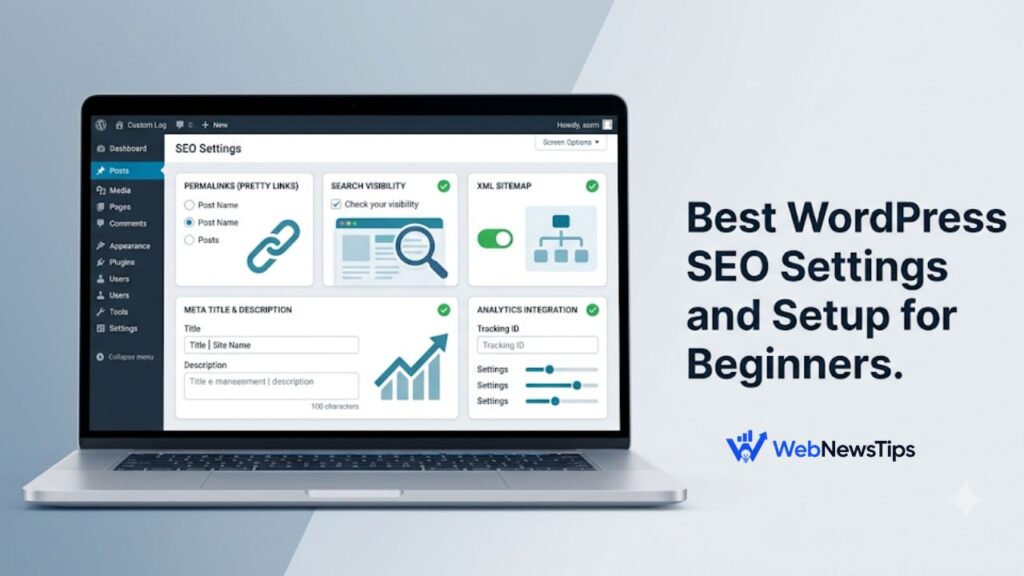
Installing WordPress is only the beginning. The default setup can publish content, but a few important WordPress SEO settings decide whether search engines can discover your pages, understand your website, and display useful titles and descriptions in search results. Beginners often skip these settings because they look technical, then wonder why their site is not being indexed or why messy URLs appear in Google.
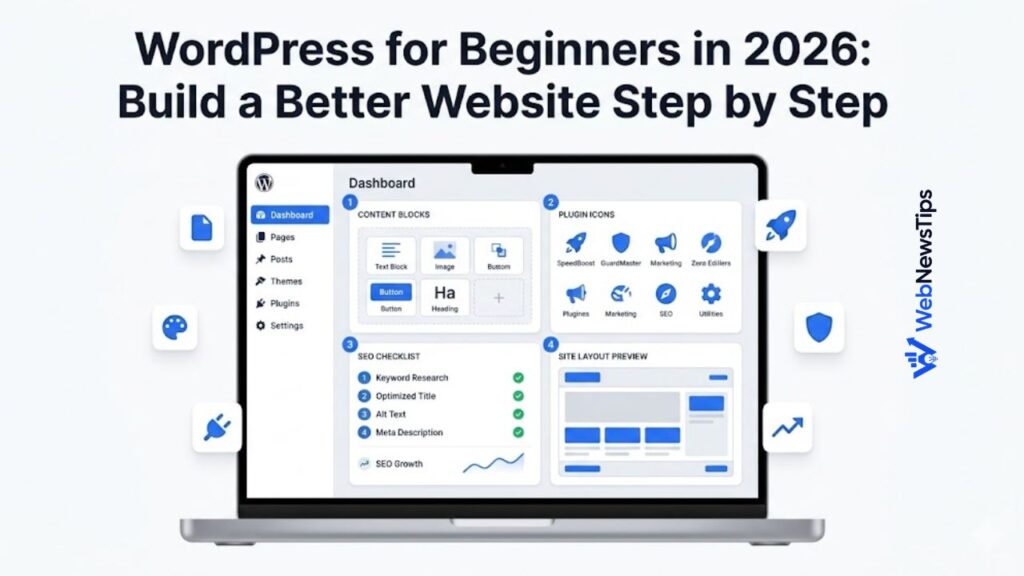
This guide walks through the safest beginner setup in the right order. It covers permalinks, search visibility, an SEO plugin framework, sitemaps, indexing controls, schema, internal links, and the settings you should review before publishing. For a broader introduction to pages, themes, plugins, and dashboard basics, start with the WordPress for beginners guide.
| The beginner rule that prevents most problems Use only one full SEO plugin at a time. Rank Math, Yoast SEO, and similar plugins control many of the same titles, sitemaps, schema, and indexing rules. Running two together can create duplicate tags, conflicting sitemaps, and confusing settings. |
1. Confirm Your Basic Site Information
Go to Settings → General and review the Site Title, Tagline, website addresses, administration email, language, and time zone. Use your real brand or publication name, and replace the default tagline with a clear description or leave it blank.
Confirm that the site loads through HTTPS and uses one consistent www or non-www version. Mixed address versions can create redirects and duplicate signals. Do not change these fields on an established site without a migration plan.
2. Check the Search Engine Visibility Setting
Open Settings → Reading and find “Discourage search engines from indexing this site.” This box is useful while a private development site is being built, but it should normally be unchecked when a public website is ready to appear in search.
When enabled, WordPress asks search engines not to index the site. It is not a privacy or security feature. Before launch, uncheck it, save changes, clear caches, and confirm that no site-wide noindex instruction remains.
| Launch check A forgotten visibility checkbox can keep an otherwise perfect website out of search results. Add this check to every pre-launch checklist. |
3. Choose a Clean Permalink Structure
Go to Settings → Permalinks. For most blogs, business sites, portfolios, and service websites, the Post name option is the cleanest starting point. It creates readable URLs such as example.com/wordpress-seo-settings/ instead of URLs filled with dates or page IDs.
A short descriptive URL helps visitors understand the page before opening it and gives you a stable structure for internal links. Remove unnecessary filler words from individual slugs, but keep the wording natural. The WebNewsTips Slug Generator can turn a long title into a cleaner draft URL.
Choose the structure early. Changing established URLs can create 404 errors and lost signals unless every old URL is redirected to the correct new page.
4. Install One SEO Plugin Framework
A dedicated SEO plugin makes it easier to manage titles, descriptions, canonical URLs, sitemaps, schema, and indexation controls. Rank Math and Yoast SEO are both beginner-friendly. Choose one and do not run another full SEO plugin beside it.
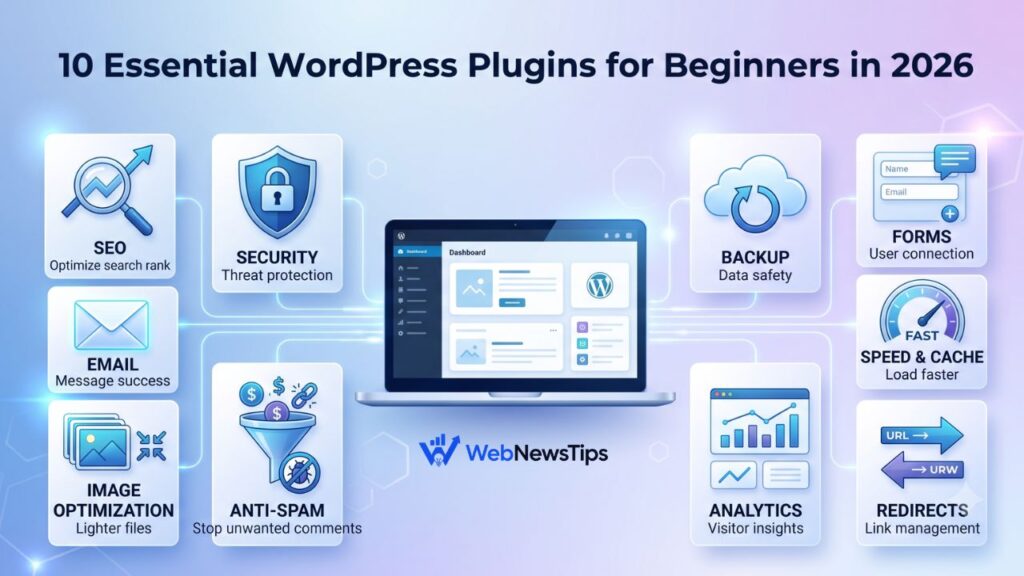
For a beginner-friendly stack, the essential WordPress plugins guide explains why an SEO plugin should solve a clear need without duplicating other tools. The examples below use the common settings found in modern SEO plugins, although menu names may differ.
5. Complete the First-Time SEO Setup Wizard
Run the setup wizard and select the correct website type, such as a blog, business, portfolio, news site, or store. Add the real organization or person name, logo, and social profiles because these details may appear in structured data.
- Choose whether the site represents a person or an organization.
- Upload a clear square logo that remains readable at a small size.
- Enable XML sitemaps unless another trusted system already creates them.
- Connect analytics or Search Console only when you understand the permissions requested.
- Keep beginner or easy mode enabled until you need a specific advanced feature.
The wizard is a starting point, not a ranking button. Review the final settings instead of treating a green plugin score as proof that a page deserves to rank.
6. Set Global Search Titles and Descriptions
Set simple title templates for posts, pages, categories, and products. A good post template usually places the unique page title first and the site name after it.
Do not force one generic meta description across the entire site. Important posts and landing pages should receive a specific description that explains the page’s value. You can draft descriptions with the Meta Description Generator and test important titles with the SEO Title Checker. Treat these tools as editing support, then adjust the wording to match the real page.
7. Configure XML Sitemaps
An XML sitemap lists the URLs you want search engines to discover. Enable the sitemap in your chosen plugin and confirm its URL loads, commonly at /sitemap_index.xml or /wp-sitemap.xml.
Include valuable public posts, pages, products, and other useful content types. Exclude private pages, thin tests, thank-you pages, redirects, errors, and URLs intentionally marked noindex.
After verifying the sitemap, submit its URL in Google Search Console. This helps you monitor discovery and indexing issues, but search engines can still find pages through internal links. Keep the sitemap and site navigation working together.
8. Decide What Should Be Indexed
More indexed pages do not automatically produce more traffic. A small website may need posts, pages, and useful categories indexed, while tag archives, date archives, internal search results, attachment pages, and duplicate author archives may add little value.
Use noindex when a page should remain accessible but should not appear in search, such as a form confirmation page. Do not noindex important content merely because it has not ranked; improve its usefulness, intent match, and internal links first.
9. Configure Canonical URLs and Attachment Pages
A canonical URL identifies the preferred version of similar pages. Most SEO plugins create self-referencing canonicals automatically, so leave them unchanged unless a genuine duplicate-content or migration case requires another URL.
WordPress can create thin attachment pages for uploaded images. Enable the option that redirects them to the media file or the post where the image is used, then test the result.
10. Connect Google Search Console
Google Search Console shows whether Google can access your pages, which queries generate impressions, and where indexing problems exist. Add and verify the preferred website property, submit the sitemap, and inspect the homepage plus a few important URLs.
Use URL Inspection after publishing an important page, fixing an indexing issue, or completing a migration. Check the Page Indexing report for unexpected noindex tags, server errors, duplicates, and redirects.
11. Use a Repeatable On-Page SEO Workflow
Site-wide settings create the framework, but each page still needs a clear topic and useful content. Before writing, choose one primary search intent and a focus phrase that describes the real question. The long-tail keyword guide explains how specific phrases can help new sites target clearer, more realistic searches.
- Use the main topic naturally in the SEO title, introduction, and at least one useful heading when it fits.
- Write a short slug that describes the page without stuffing keywords.
- Create a unique meta description focused on the benefit or answer.
- Use one H1 and organize supporting ideas with logical H2 and H3 headings.
- Add descriptive image file names and alt text where the image conveys useful information.
- Link to relevant older and newer pages using natural anchor text.
A planned internal linking strategy helps search engines discover related pages and helps readers continue to the next useful answer. Add links because they improve the journey, not because you are trying to reach an arbitrary number.
12. Review Schema Markup Without Overcomplicating It
SEO plugins can add structured data for the website, organization, person, articles, breadcrumbs, products, and other content. Select the type that matches the visible page instead of choosing a richer-looking but inaccurate schema.
Complete the organization or person information accurately and review page-level schema on important content. Structured data can improve understanding, but it does not guarantee a rich result.
13. Keep Robots.txt Simple
Robots.txt controls crawling, not guaranteed indexing. Avoid copied rule sets that block important images, CSS, or JavaScript. WordPress and reputable SEO plugins already provide a sensible base for most sites.
Use the Robots.txt Generator only when you understand what each rule does. If a page must be removed from search, use the appropriate noindex setting and allow the crawler to access the page so it can see that instruction.
14. Support SEO With Speed, Mobile Usability, and Maintenance
SEO settings cannot rescue a slow, broken, or insecure website. Use a responsive theme, compress oversized images, limit unnecessary plugins, keep software updated, and test important pages on mobile devices. The WordPress speed optimization guide provides a practical order for improving performance without turning on conflicting optimization features.
Back up the website before changing permalinks, SEO plugins, redirects, or advanced schema. Test navigation, forms, checkout pages, and analytics after major updates.
Common WordPress SEO Setup Mistakes
- Leaving the “Discourage search engines” option enabled after launch.
- Installing two full SEO plugins and allowing both to generate metadata.
- Changing established permalinks without creating accurate redirects.
- Indexing every tag, archive, test page, and thin attachment page.
- Treating a plugin score as more important than search intent and useful information.
- Blocking pages in robots.txt while expecting Google to see a noindex tag on them.
- Submitting a sitemap but failing to add internal links to important pages.
- Using the same title and meta description across many pages.
Beginner WordPress SEO Settings Checklist
☐ Confirm the site title, tagline, HTTPS address, language, and time zone.
☐ Uncheck search engine discouragement when the public site is ready.
☐ Select a clean permalink structure before publishing many pages.
☐ Install and configure only one full SEO plugin.
☐ Set the correct person or organization identity and logo.
☐ Enable and verify the XML sitemap.
☐ Submit the sitemap in Google Search Console.
☐ Review which content types and archives should be indexed.
☐ Confirm canonical URLs and attachment-page redirects.
☐ Set sensible global title templates and write unique descriptions for important pages.
☐ Add internal links, descriptive image alt text, and logical headings.
☐ Review Search Console, speed, mobile usability, and backups regularly.
Frequently Asked Questions
Which WordPress permalink setting is best for SEO?
Post name is a strong default for most beginner websites because it creates short, descriptive URLs. Established sites should not change their structure without planning redirects and testing the migration.
Should beginners use Rank Math or Yoast SEO?
Either can provide a solid framework. Choose one plugin, complete its first-time configuration, and learn its settings. The more important decision is avoiding duplicate SEO plugins and using the selected tool consistently.
Does WordPress automatically create a sitemap?
Modern WordPress includes a basic XML sitemap, while SEO plugins often provide more controls. Use one sitemap system, confirm the URL loads, and submit the preferred sitemap in Search Console.
Should categories and tags be indexed?
Useful category pages can be indexed when they organize substantial related content. Thin, duplicate, or unused tag archives may be better left out of search. The decision should be based on value, not a universal rule.
How often should SEO settings be reviewed?
Review the full setup after launching, changing themes or SEO plugins, migrating domains, or adding major content types. Check Search Console and important page templates monthly, while ordinary on-page settings should be reviewed whenever content is published or updated.
Final Thoughts
The best WordPress SEO settings create a clean foundation for crawling, understanding, and navigation. Start with visibility, readable permalinks, one trusted plugin, a working sitemap, sensible indexation, accurate identity, and Search Console.
Once the framework is correct, focus on what visitors actually need: clear answers, fast pages, descriptive titles, helpful internal links, and regular maintenance. That combination is more valuable than chasing perfect plugin scores or enabling advanced features you do not understand. For continued learning, browse the WebNewsTips SEO learning hub for practical guides and beginner-friendly tools.